Switching phones is when vault photos most often disappear. In the most recent one- and two-star App Store reviews of eight popular vault apps, which we read in October 2026, backup and new-phone transfer problems came up 31 times, and lost or missing photos 47 times. Most of those losses are avoidable if you check a few things before the old phone is wiped. This checklist works for any vault app.
Why do vault photos go missing on a new iPhone?
Usually because the photos were never in the place the owner thought they were. The common causes:
- The vault isn't in your iPhone backup. Apps can keep files out of iCloud Backup and Quick Start transfers. Many vaults do, on purpose, so private photos don't sit in an ordinary backup. The app comes back on the new phone; the photos don't.
- The backup is in the developer's cloud and needs an account, a paid plan, or an email you no longer use.
- The backup was never finished. iCloud storage was full, uploads were set to Wi-Fi only, or the app wasn't opened long enough to upload.
- The code doesn't carry over. A PIN or recovery email tied to the old phone, or a forgotten password with no recovery option.
- The old phone was erased too early, before anyone checked the new one.
Step 1: Find out how your vault app backs up
Open the vault's settings and look for a backup, sync or cloud section. Then answer three questions: where does the backup go, is it on, and what do you need to restore it?
| Backup type | What you need on the new iPhone | Risk |
|---|---|---|
| iPhone backup / Quick Start | A full transfer from the old iPhone | Only works if the app includes vault files in the backup. Check, don't assume. |
| The developer's own cloud | Your account login, often a paid plan | Lost login, lapsed subscription, or a service that shuts down. |
| Your own iCloud, managed by the app | The same Apple Account, plus the vault's code | Incomplete upload if iCloud storage is full. |
| Manual export file | The file, and its password if it's encrypted | Only as current as your last export. |
If you can't find any backup setting, assume the photos exist only on the old phone. Contact the developer before you switch.
Step 2: Export a safety copy of what you can't replace
Export your most important photos and videos to somewhere you control, such as Files on a Mac or an encrypted external drive. Check the export keeps full quality and dates. Exported copies are no longer encrypted by the vault, so keep them somewhere private and delete them once the move is done.
Step 3: Make sure the backup is complete
- Connect to Wi-Fi and power, and open the vault app. Many apps only upload while they're open or recently used.
- Check the backup status in the app. Look for "backed up", a last-backup time, or a count of items still waiting.
- Check your iCloud storage in Settings › [your name] › iCloud. A full iCloud quietly stops backups.
- Compare counts. Note how many photos and videos the vault holds now, so you can check them later.
Step 4: Make sure you can get in on the new phone
Write down your vault code and any recovery phrase, recovery key or recovery email. If your vault has a decoy vault or several vaults with different codes, note each one. Face ID won't carry over: the first unlock on a new iPhone needs the code itself.
Step 5: Move to the new iPhone
Set up the new iPhone with Quick Start or from an iCloud backup, signed in to the same Apple Account. Then install or open the vault app.
Step 6: Restore inside the vault app, then check everything
- Open the vault app and follow its restore steps: log in, enter your code, or choose restore.
- Wait for it to finish. Large libraries can take hours. Keep the phone on Wi-Fi and power.
- Compare the counts with what you noted in Step 3.
- Open a few full-size photos and play a few videos, including old ones, not just thumbnails.
- Check albums, notes and any decoy vaults.
Step 7: Only then erase the old iPhone
Keep the old phone as it is until the new one has passed Step 6. If something is missing, the old phone is your copy. When everything checks out, delete your safety exports from Step 2, then erase the old iPhone.
Moving Noxium to a new iPhone
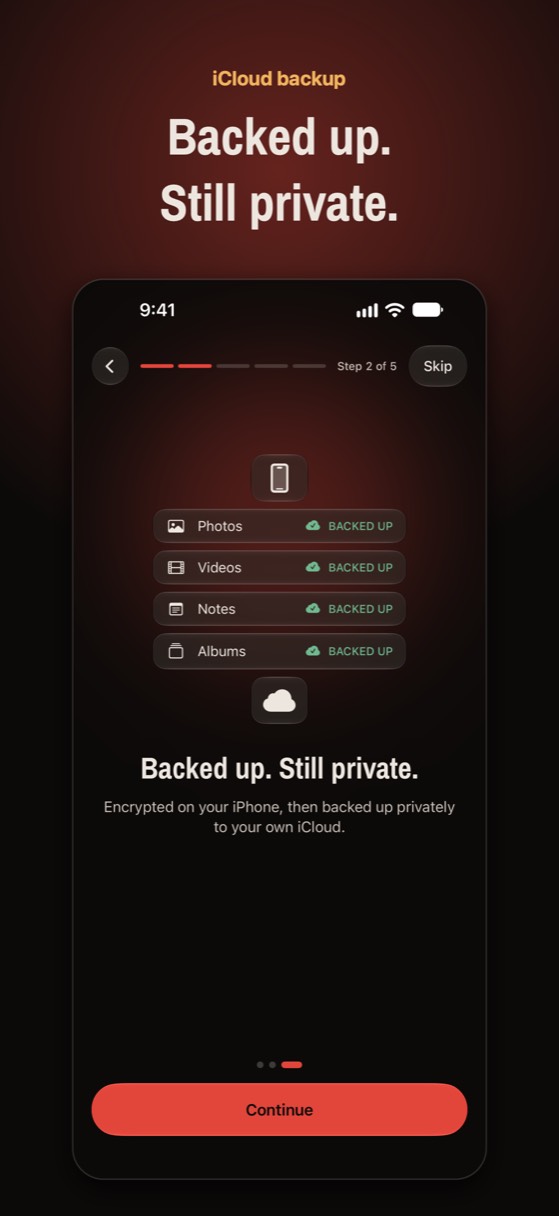
Noxium, which we make, is built for this moment. Its vault files are deliberately left out of the iPhone's own backup and Quick Start transfer. Instead, Noxium keeps its own encrypted backup in your iCloud, and you restore it by drawing your pattern.
- On the old iPhone: open Settings › Backup in Noxium and check that nothing is still waiting to back up.
- On the new iPhone: sign in to the same Apple Account, install Noxium, and choose Restore your vault.
- Draw your pattern, or choose Restore with recovery phrase. Thumbnails arrive first so you can browse right away; full-size originals download in the background.
- Open other vaults, such as a decoy, by drawing their patterns. They stay in iCloud until you do.
Try Noxium free: join the beta →
What if photos are already missing?
Don't delete or reinstall the vault app on either phone, and don't erase the old iPhone if you still have it. Check whether the old phone still opens the vault, look for a restore option in the app's settings, check whether the app has its own website login, and email the developer with your app version and what happened. Reinstalling can delete local files that might still be recoverable.
New phone? Everything comes back.
Noxium keeps an encrypted backup in your own iCloud. On a new iPhone, draw your pattern and your vault restores. Free plan included.
Join the Early Tester List Version 1.0 was submitted to App Store review in October 2026. It is not on the App Store yet.Questions people ask
Does Quick Start transfer photo vault apps?
It transfers the app, and the app's files only if the app includes them in the iPhone's backup. Many vault apps leave their files out on purpose, so check how your vault backs up before you switch.
Do I need the same Apple Account on the new iPhone?
For vaults that back up to your iCloud, yes. The backup lives in that Apple Account's iCloud. For vaults that use their own cloud, you need that app's login instead.
Will Face ID work for my vault on the new iPhone?
Not until you've unlocked it once with your code. Face ID is tied to the device, so the first unlock on a new iPhone needs your PIN, password or pattern.
How long does restoring a vault take?
It depends on the size of the library and your connection. Thousands of photos and long videos can take hours. Keep the new phone on Wi-Fi and power, and don't erase the old one until it's done.
Does Noxium restore with Quick Start?
Quick Start moves the app, not the vault. The vault comes back from Noxium's own encrypted iCloud backup when you choose Restore your vault and draw your pattern on the new iPhone.
Something wrong or out of date? Email business@inertiaprojects.info and we'll fix it.